Excel workbooks with VBA macros, rebuilt as web applications
Quotes, invoices, stock and planning often run on an Excel file that has gathered macros, forms and hidden sheets over the years. We rebuild that workbook as a web application with a proper database. The calculations and the numbering stay the same, and several people can work at once without overwriting each other.
Why now
Desktop Excel still runs VBA, and Microsoft 365 continues to support it. The limits show up elsewhere. Excel for the web cannot create, run or edit VBA macros, so a macro workbook kept in SharePoint or OneDrive only works when someone opens it in the desktop app. Office on Windows also blocks macros by default in files that come from the internet, email attachments included, which regularly stops the workbook when it is sent to a colleague.
Excel 2021, with the rest of Office 2021, reaches the end of Microsoft support on 13/10/2026. The larger risk is usually not a date, though. It is the person who wrote the macros moving on, and nobody else knowing which sheet feeds which total.
- Windows 10End of Microsoft support
- Excel 2021 and Office 2021End of Microsoft support
What we migrate
The workbook as people actually use it, including the parts nobody remembers adding.
Formulas and calculation chains
Totals, VAT, discounts, price lists,
VLOOKUPandINDEX/MATCHchains across sheets. We trace every result back to its inputs and reproduce the same calculation in the application, rounding included.VBA macros
Buttons that copy rows, create documents, number invoices, send email through Outlook or export files. The logic moves to the server and runs the same way for everyone.
UserForms
Data entry forms built in the VBA editor, with their drop-down lists and checks. They become web forms with the same fields and the same validation.
Sheets used as tables
Customer lists, products, price tables and archives of past documents. They become database tables with keys, so duplicates and gaps are caught on entry instead of at month end.
Templates and printed documents
The sheet laid out as an invoice, a quote or a delivery note. It becomes a PDF produced by the application, with the same layout and numbering.
Links between workbooks
Files that read values from other files on the network, and the routine of copying and renaming the workbook every month or year. Everything ends up in one application with the full history.
What the web version looks like
- Dashboard
- Invoices
- Customers
- Reports
| Description | Qty | Price | Amount |
|---|---|---|---|
| Shop sign, aluminium 200×60 cm | 1 | €980.00 | €980.00 |
| Window vinyl graphics | 1 | €420.00 | €420.00 |
| Installation on site (h) | 4 | €52.50 | €210.00 |
| A | B | C | D | E | F | G | |
|---|---|---|---|---|---|---|---|
| 3 | No. | Date | Customer | Net | VAT | Total | Paid |
| 4 | 2026-0181 | 21/09/2026 | Lumen Bistro | 1,240.00 | 248.00 | 1,488.00 | Yes |
| 5 | 2026-0182 | 23/09/2026 | Orsini Ottica | 386.50 | 77.30 | 463.80 | Yes |
| 6 | 2026-0183 | 25/09/2026 | Haberl Bäckerei | 2,150.00 | 430.00 | 2,580.00 | No |
| 7 | 2026-0184 | 29/09/2026 | Studio Kerr | 95.00 | 19.00 | 114.00 | Yes |
| 8 | 2026-0185 | 30/09/2026 | Café Lindqvist | 742.80 | 148.56 | 891.36 | No |
| 9 | 2026-0186 | 02/10/2026 | Palmer & Rhee | 1,610.00 | 322.00 | 1,932.00 | No |
| 10 | 7,469.16 | ||||||
| 11 | |||||||
| 12 | |||||||
| 13 |
An invoicing workbook with a VBA form, as it might look in Excel 2003, and the same invoices in a web application.
Drag the handle, or use the arrow keys.
Where each part ends up
- In the workbook: One sheet per list (customers, products)
- In the web application: Database tables with keys and checks on entry
- In the workbook: Formulas across sheets
- In the web application: Calculations on the server, with the same rounding
- In the workbook: UserForms and macro buttons
- In the web application: Web forms and actions, according to each user's role
- In the workbook: The invoice or quote sheet
- In the web application: PDF documents with the same layout and numbering
- In the workbook: A copy of the file per person, month or year
- In the web application: One application holding the full history
- In the workbook: Sheet protection with a password
- In the web application: Personal logins with roles, and a record of changes
How the migration works
Assessment within 48 hours
You send us the workbook, with test data if you prefer, together with any other files it reads from or writes to. Within 48 hours we reply with a written report: what the program does today, where the risks are, how the web version would be organised, a fixed price for a pilot module and an estimate for the rest. It is free and commits you to nothing.
Pilot module
We build one part of the application on a copy of your real data, usually the part people use most. Your staff work with it day to day before you decide on the rest.
Automated old-versus-new tests
We give the same inputs to the workbook and to the new application and compare every calculated value, down to the cent. Each rule we find gets an automated test that gives the same input to the old program and to the new application and checks that the results match. You receive the test results.
30-day parallel run
When the full application is ready, the workbook stays in use alongside it for 30 days. Any difference shows up while the old program is still there, and we fix it within the agreed price.
Typical pitfalls, and how we handle them
Code that depends on what is selected
Recorded macros often rely on
Select,ActiveSheetandActiveCell, so the result depends on whatever the user clicked last. Before rewriting anything we work out what each macro is meant to do and confirm it with you in writing.Hidden sheets and named ranges
Rates, thresholds and lookup tables are often kept on hidden or “very hidden” sheets, or behind named ranges that point to other workbooks. We list each of them in the assessment, because each one is a business rule.
Volatile and positional formulas
INDIRECT,OFFSETand references such asSheet1!C14depend on where things sit in the grid. A row inserted in the wrong place quietly changes a total. In the application every value has a name and a type, and the calculation no longer depends on the layout.Dates and numbers stored as text
Values pasted from other systems often arrive as text, with day and month in different orders depending on the regional settings of the PC that saved them. We check every column during the import and list the rows that need a decision from you.
Rounding and floating-point totals
Excel displays two decimals but calculates with more, and the sum of rounded lines does not always equal the rounded total. We agree with you which rule applies, per line or on the document total, and the comparison tests check it on every document.
Automating other programs
Macros that drive Outlook, Word or a PDF printer through
CreateObjectorSendKeyscannot work outside a desktop session. We replace them with email sending and PDF generation on the server.
Price and payment
Assessment
Free
in writing, within 48 hours
Pilot module
€1,000–1,500
usually, paid 50% at the start and 50% on approval
The assessment is free. If you decide not to go ahead, you keep the report and owe nothing.
Prices are fixed and agreed in writing before work starts. If the scope changes, we send a new written quote and wait for your approval before doing the extra work.
For a full migration, we aim to come in 40 to 60% below a typical agency quote. We can do this because we are a small studio, with no offices to pay for and no sales team.
Prices exclude VAT.
A real migration, checked by tests
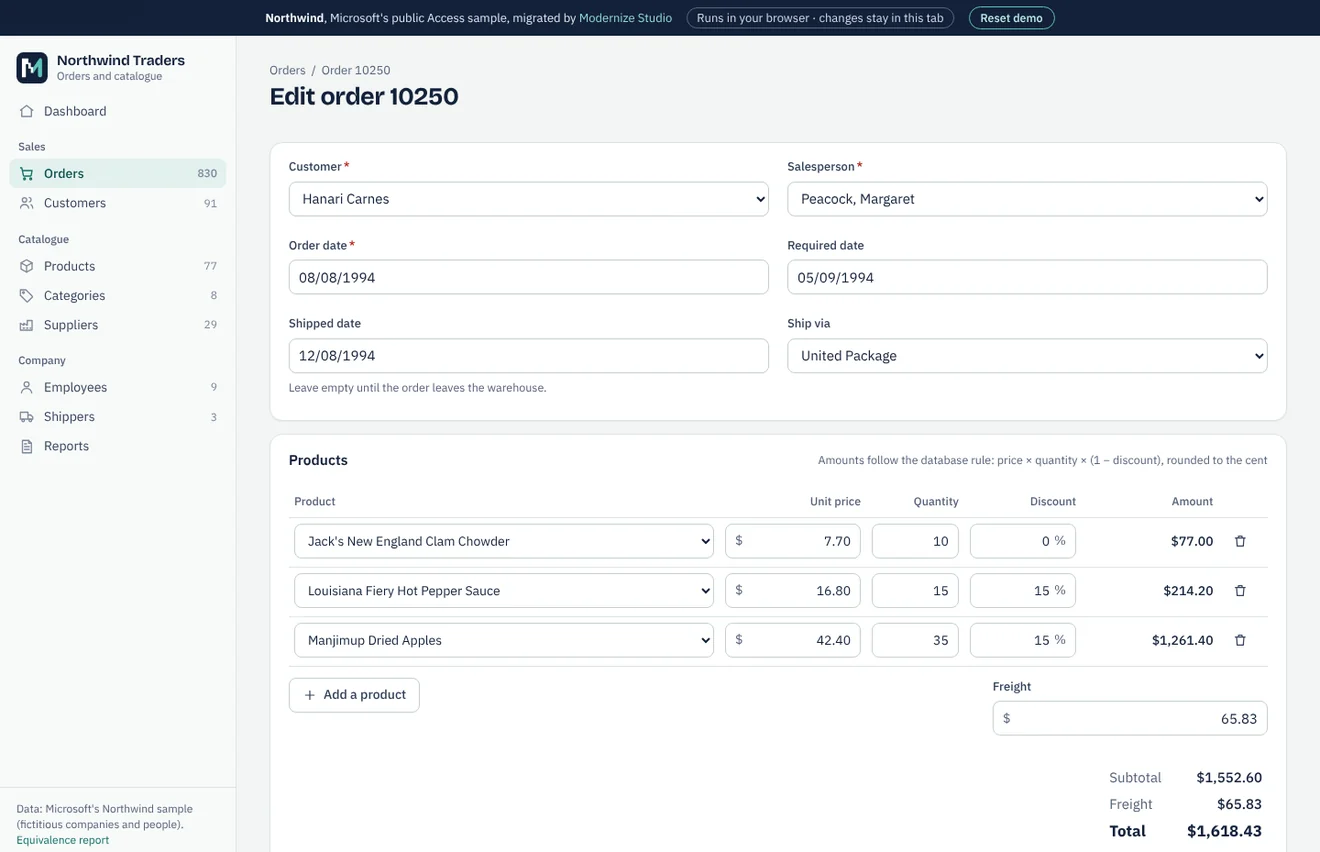
Northwind is the sample database Microsoft shipped with Access, not a client of ours. We migrated a public copy to SQLite and PostgreSQL, compared every table and every query with the original through automated tests, and built a working web application on the result. The case study gives the figures and the equivalence report lists every check.
Northwind is an Access database, but we follow the same method for Excel VBA: migrate, test against the original, run both side by side.
Equivalence report · Clickable preview and sample assessment (demo)
FAQ
Will the calculations give exactly the same results?
That is what the comparison tests are for: the same inputs go into the workbook and into the web application, and every calculated value is compared. Where the workbook itself contains an error, we show it to you and you decide whether to keep or correct it.
Can we still export to Excel?
Yes. Lists and reports can be downloaded as Excel files, so anyone who likes to analyse data in a spreadsheet can carry on doing so. The difference is that the data itself lives in the database.
Why not simply use Excel for the web or SharePoint?
Excel for the web does not run VBA macros, so the workbook would lose the very part that makes it useful. Sharing the file also does not stop two people editing the same rows, or protect rules that live in formulas anyone can overwrite.
The person who wrote the macros has left. Can you still work on it?
Yes. The VBA code is inside the file, and we read all of it during the assessment. The report explains what each macro does in plain language, which is often useful in its own right.
How many people can use it at the same time?
Several people can enter data at once, each with their own login. The database stops two people from saving conflicting changes to the same record, which a shared workbook cannot do reliably.
We have several similar workbooks, one per year or per branch. Is that one project?
Usually, yes. We import all of them into one database, so past years remain searchable. The assessment lists any differences between the versions that need a decision.
Other services
- Microsoft Access to web applicationTables, queries, forms, reports and VBA moved to a web application on SQL Server or MySQL.
- VB6 application migrationVisual Basic 6 programs moved to C# and the web, with or without the source code.
- Delphi application migrationDelphi programs on BDE, Paradox or dBase moved to a web application on a SQL database.
- Legacy .NET modernisationWinForms and ASP.NET Web Forms applications moved to ASP.NET Core, keeping what still works.
- Custom software and integrationsNew business applications, REST API integrations, data migration and maintenance.
Contact
By email:
riccardo@Send us the workbook, with test data if you prefer, or a short description of what it does. We reply within one working day.
We work from Italy.